
July 31, 2026•17 min read
6 best AI tools to recolor clothing in photos (2026)
You sell the same garment in five colors but only photographed one. These six AI tools change clothing color in existing photos or generate every colorway on the same model, from free recolor apps to full catalog workflows.
Picture of 6 best AI tools to recolor clothing in photos (2026) article
You photographed the charcoal version of your hoodie and it looks great. The problem is you also sell it in sage, rust, and cream, and nobody budgeted a second shoot for those. This is the exact job AI recolor tools exist for: change the color of clothes in a photo while the fabric and the lighting stay put.
The tools below attack the problem from two directions. Editors like Photoshop, Fotor, and Pincel repaint the pixels in a photo you already have. WearView goes the other way and generates a fresh on-model photo for each colorway, so a five-color product page looks like one coordinated shoot instead of five separate edits.
We compare six tools on pricing, how they treat texture and prints, and which one fits your workflow, whether that's a single Instagram post or a 40-SKU catalog refresh.
Best AI tools to recolor clothing: a brief overview
- WearView: Best for colorway product catalogs: renders every color variant of a garment on the same AI model with matching lighting, so the product page looks uniform.
- Adobe Photoshop: Best for pixel-accurate control: selective color adjustments and Generative Fill for recolors a client will inspect at 200% zoom.
- Fotor: Best dedicated clothes color changer on the web: type which area to recolor, pick a HEX code, download.
- Pincel: Best brush-and-prompt recolor: paint over the garment, type the color, and its Keep Outlines mode shifts the hue without redrawing the design.
- Pixelcut: Best free and mobile option: auto-detects the garment and recolors it in a couple of taps on web, iPhone, or Android.
- Canva: Best for marketing teams already in Canva: Magic Edit recolors an outfit inside the same editor you build the ad in.
| Tool name | Key strength | Pricing | Platforms |
|---|---|---|---|
| WearView | Generates each colorway on the same AI model for uniform catalogs | From $29/month | Web |
| Adobe Photoshop | Pixel-level recolor control plus Generative Fill | From $22.99/month | Desktop, web, iPad |
| Fotor | Dedicated AI clothes color changer with HEX-code input | Free credits; Pro from $8.99/month billed annually | Web, mobile |
| Pincel | Brush-and-prompt recolor with a Keep Outlines mode | 20 free credits; from $19/month | Web |
| Pixelcut | Free auto-detect recolor with HD downloads | Free; Pro from $10/month | Web, iOS, Android |
| Canva | Magic Edit recolors clothes inside your design workflow | Pro from $15/month | Web, desktop, mobile |
1. WearView, best for colorway product catalogs
WearView is an AI fashion photography platform, and it treats the colorway problem differently from every editor on this list. Instead of repainting pixels in one photo, you upload a product photo of each actual color variant (the red hoodie, the sage one, the navy one) into its product to model tool, pick an AI model, describe the background or setting, and generate. Each on-model image comes back in about 15 seconds.
The piece that matters for colorways is consistent AI models. You save a model persona once, then generate every color variant on that exact same face and body, with the scene described the same way each time. The result reads like one photoshoot that covered six colors, not six edits of one photo. Output goes up to 4K with commercial usage rights, and the same workspace covers virtual try-on, AI model creation from text prompts, ghost mannequin shots, pose control, and fashion video.
To be clear about what WearView does not do: it will not open your existing photo and repaint the sweater from red to blue. You need a photo of each real colorway, though a flat lay or packshot is enough. If you only want a quick one-off recolor of an image you already have, the editors below are the simpler pick.
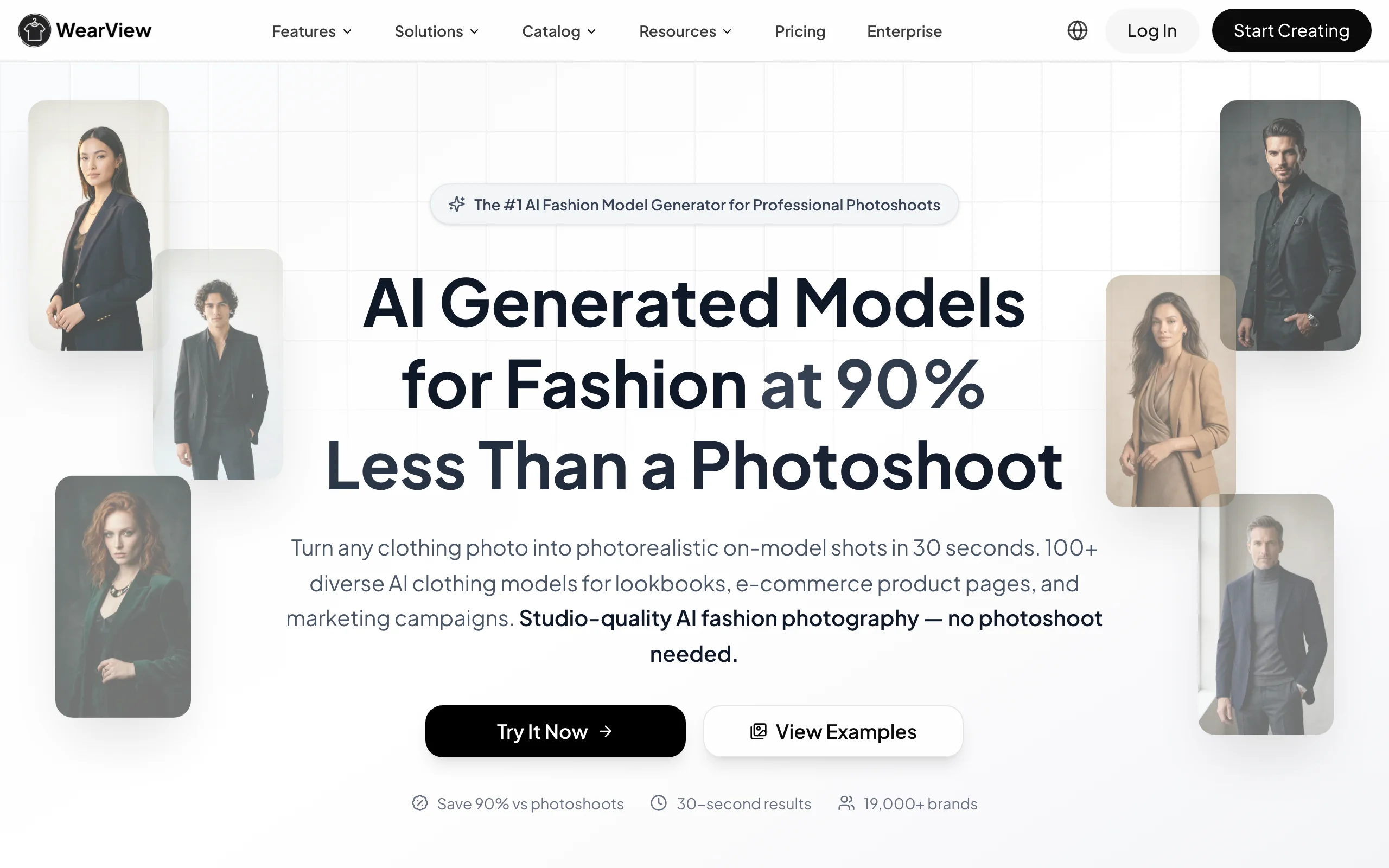
AI Recolor Clothing with WearView
Key features
- Product-to-model conversion that turns a flat lay or packshot of each colorway into an on-model photo in about 15 seconds
- Consistent model personas, so every color variant appears on the same AI model
- Prompt-described backgrounds and poses that keep scenes matched across variants
- HD, 2K, and 4K output with commercial usage rights
- Virtual try-on, ghost mannequin, pose control, and AI fashion video in the same workspace
Best for
- Brands and sellers listing one garment in three or more colors who want the product page to look like a single shoot
- Teams that have packshots or flat lays of each colorway but no on-model photography
Pricing
- Lite at $29/month (50 credits), Pro at $49/month (200 credits), Advanced at $99/month (500 credits)
- No free tier; annual billing saves up to $198/year
- Credit packs available for one-off top-ups
Pros
- Colorway sets come out uniform because the model, pose, and scene carry across every variant
- Replaces the reshoot entirely instead of patching one photo
- Commercial rights on all paid plans
Cons
- Not a pixel editor: it cannot recolor a garment inside an existing photo, so you need a photo of each real colorway
- Paid only, which is oversized for a single one-off recolor
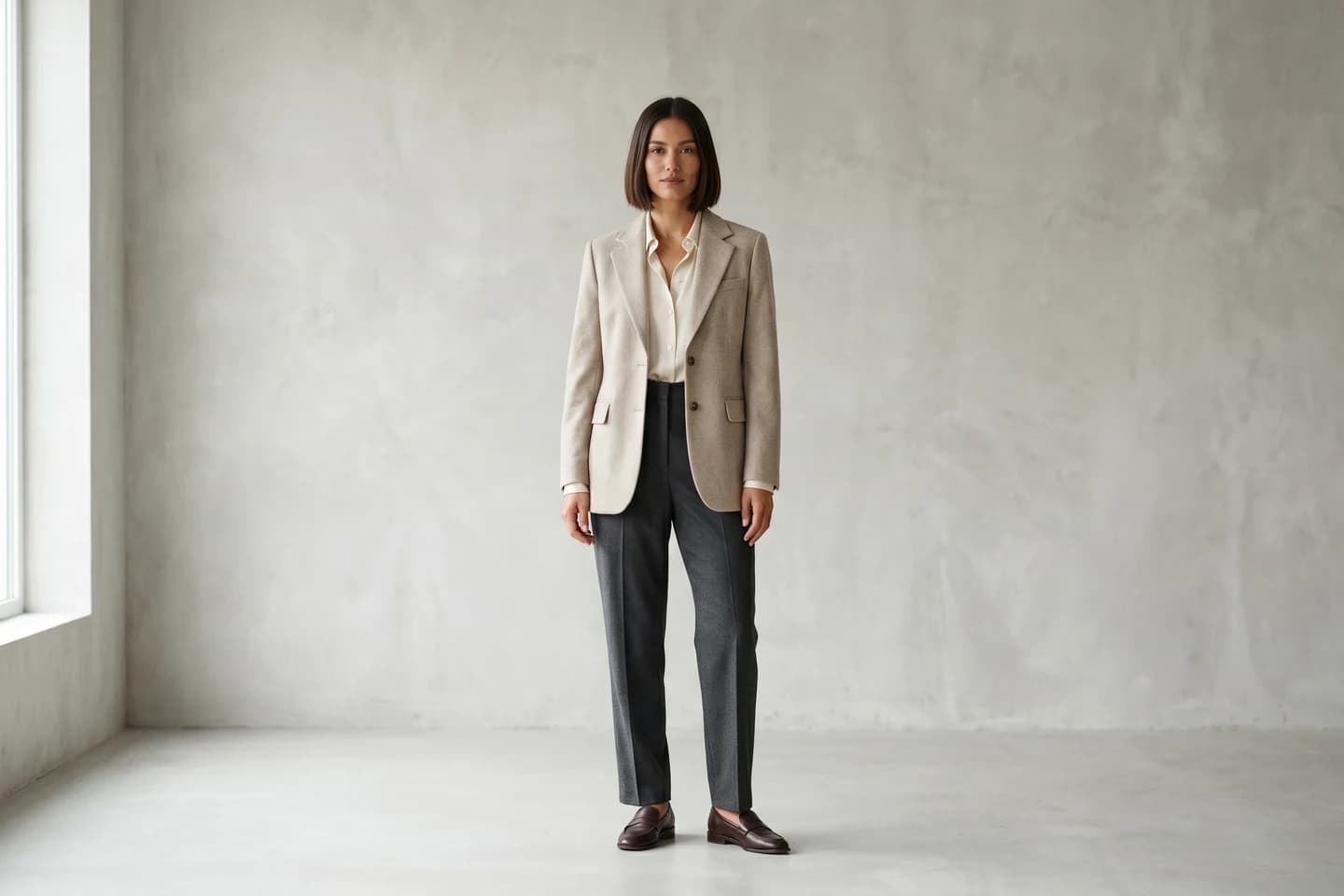
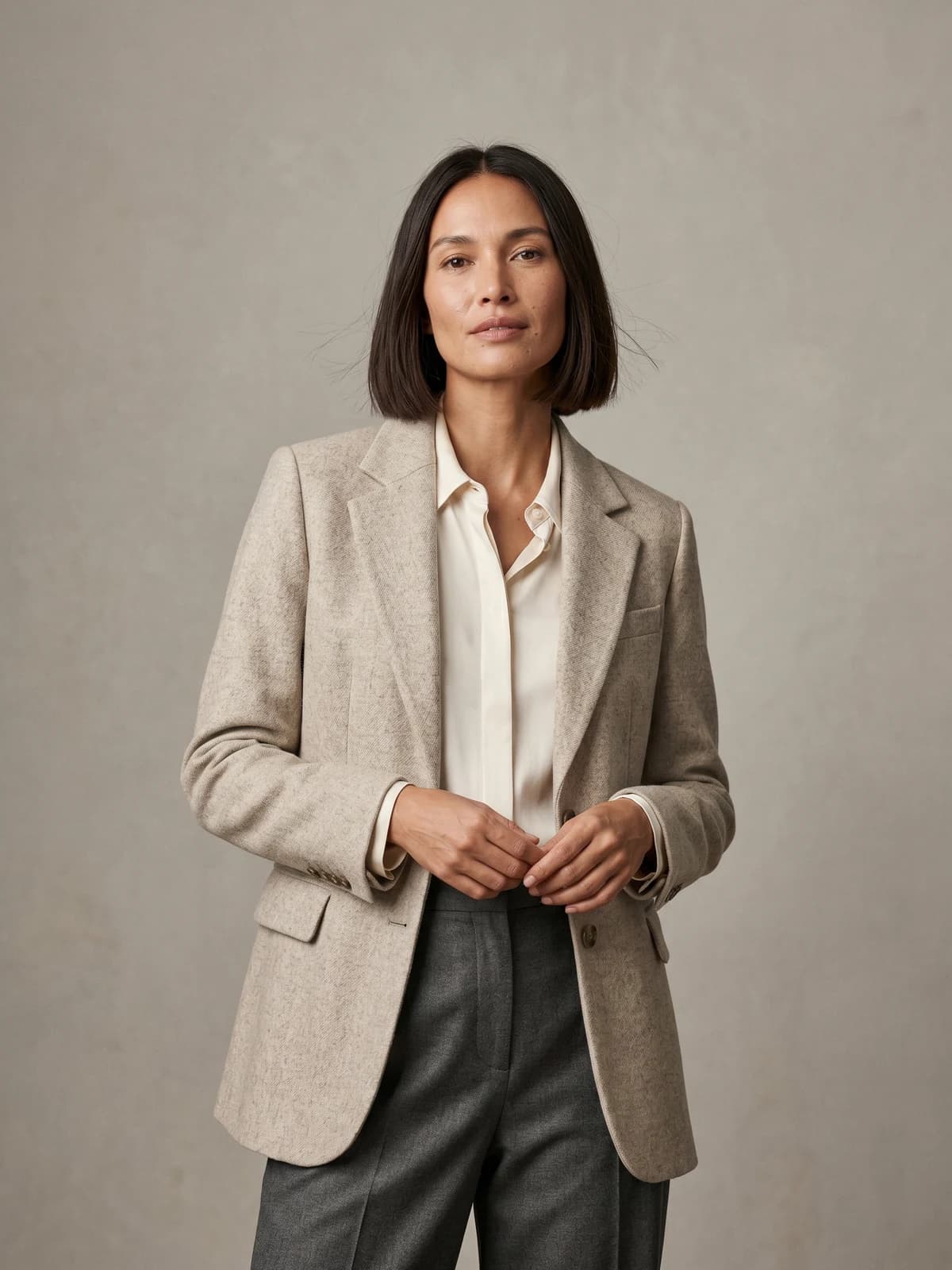
The same model across your whole catalog
Keep one signature model consistent across every product, pose, and collection.
2. Adobe Photoshop, best for pixel-accurate recolor control
Photoshop is still what professionals reach for when a recolor has to survive scrutiny. The classic route is a Hue/Saturation adjustment layer with a mask over the garment: target the reds, shift the hue, and the fabric texture, shadows, and creases carry over untouched because you never repainted them. For harder jobs, like taking a white shirt to black or preserving a print through a drastic change, Generative Fill lets you select the garment and describe the replacement.
The trade-off is time. Selecting a garment cleanly around hair and fingers takes practice, and nothing here is one-click. Ecommerce studios that already live in Photoshop won't mind. A seller who just wants the blue version of a listing photo probably will.
Key features
- Hue/Saturation and Selective Color adjustments that shift color without touching texture
- Object Selection and Select Subject for faster garment masking
- Generative Fill for AI-driven garment edits, metered by generative credits
- Actions and batch processing for recoloring a set of photos
- Runs on desktop, web, and iPad
Best for
- Retouchers and studios that need exact brand colors and clean edges
- Recolors on tricky fabrics (sheer, reflective, layered) where automated tools smear
Pricing
- Single-app plan around $22.99/month on the annual plan billed monthly, or $34.49 month-to-month
- The single-app plan includes 25 generative credits per month; the $19.99/month Photography plan includes 1,000
- Free trial available
Pros
- The most precise recolor control on this list, down to individual color channels
- Non-destructive workflow, so you can revisit and adjust the hue later
- Handles edge cases that break automated tools
Cons
- Real learning curve; clean garment masking is a skill in itself
- 25 generative credits per month on the base plan run out fast if you lean on Generative Fill
3. Fotor, best dedicated clothes color changer on the web
Fotor built a tool for exactly this search. Its AI clothes color changer runs in the browser, and you tell it what to recolor by typing it: upload the photo, describe the target area ("the dress", or as narrow as "the logo on my shirt"), then pick a palette color or enter a HEX code. That HEX input matters when you are matching a brand color rather than eyeballing one.
It handles patterned garments and keeps fabric texture and shadows in place, and you can recolor several parts of one outfit, or different outfits in a group photo, by naming them in the prompt. Results download as JPG or PNG. New users get free credits to test it, and Fotor Pro lifts the limits.
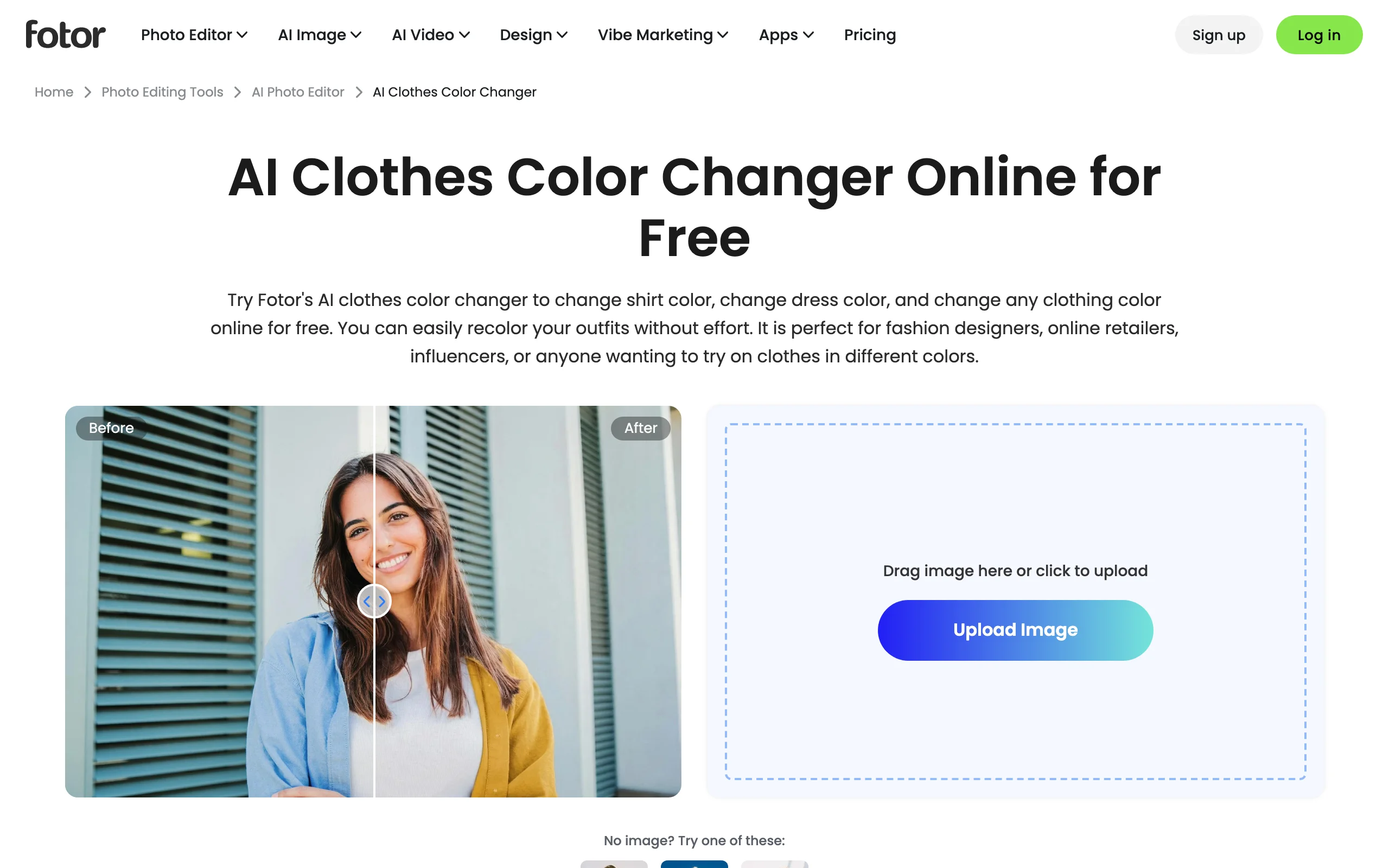
AI Recolor Clothing with Fotor
Key features
- Text-prompt area selection, down to details like a logo or collar
- HEX code input for exact brand-color matching
- Preserves fabric texture, folds, and shadows through the recolor
- Works on patterned garments and group photos
- JPG and PNG export, on desktop and mobile
Best for
- Sellers matching garments to exact brand HEX values without touching a mask
- Quick listing-photo recolors in the browser
Pricing
- Free credits for new users to try the recolor tool
- Fotor Pro at around $8.99/month billed annually, or $12.99 month-to-month, for unlimited use of the tool (Fotor's pricing page loads prices dynamically; figures from third-party pricing roundups)
Pros
- Prompt-based selection is faster than masking for most garments
- HEX precision that most casual tools skip
Cons
- Exports on the free Basic plan carry a watermark
- Busy scenes can take a couple of regenerations before the right area is isolated
4. Pincel, best brush-and-prompt recolor
Pincel is a browser-based AI editor where recoloring works like a paint job: brush over the garment, type the color you want ("blue shirt"), and generate. Its Keep Outlines mode is the differentiator. It constrains the AI so the garment's print and seams survive and only the color shifts. Most prompt editors redraw the whole selection; this mode keeps the design where it was.
Pricing is credit-based and cheap per image. The Creator plan gives 1,000 credits for $19/month, unused credits roll over while the plan is active, and you keep full commercial rights to the results, so recolored listing photos are fine to use.
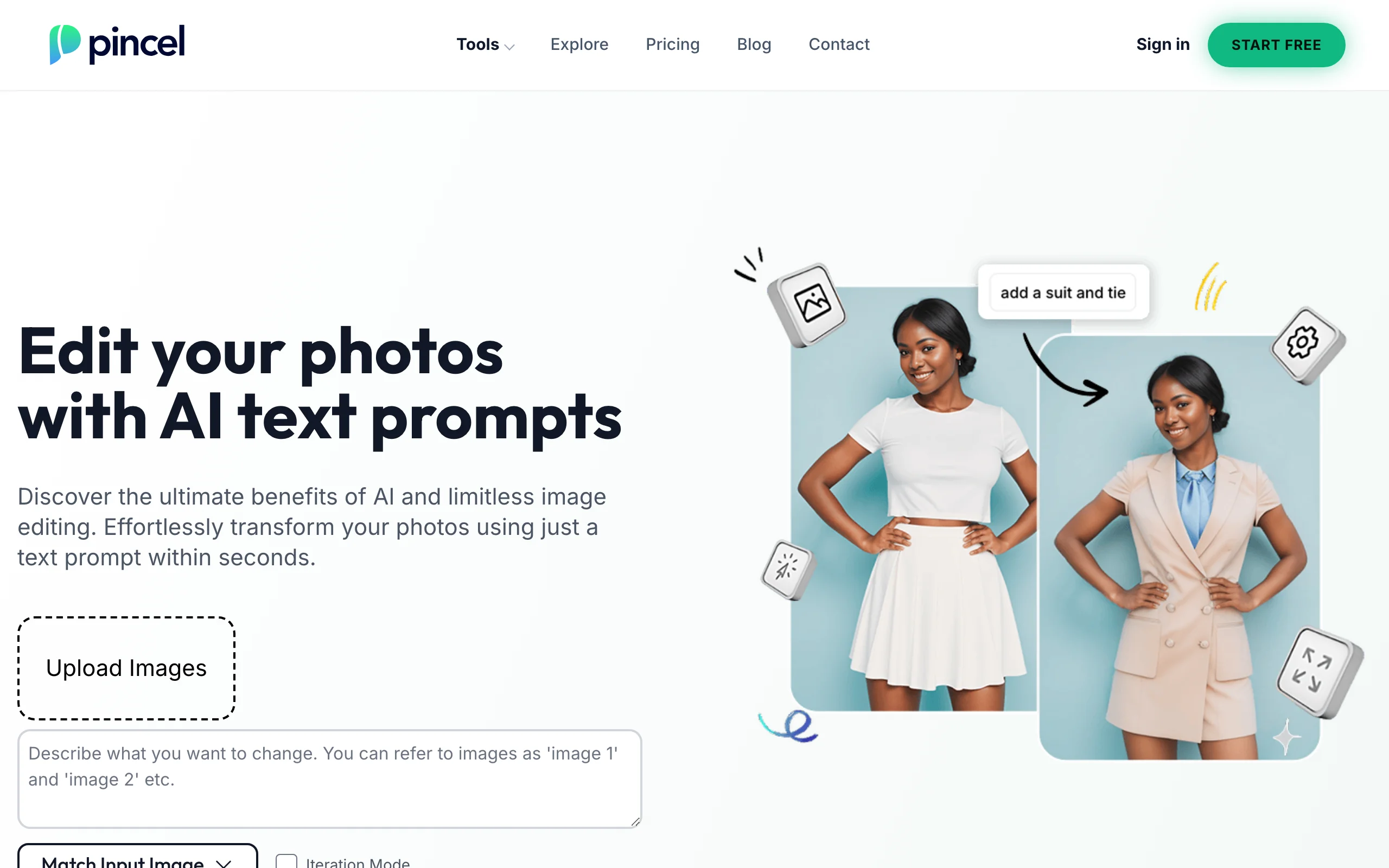
AI Recolor Clothing with Pincel
Key features
- Brush selection plus a text prompt, no manual masking
- Keep Outlines mode that recolors without redrawing the garment design
- Credit rollover while the subscription is active
- Full commercial rights to edited images
- Runs in the browser, nothing to install
Best for
- Creators and resellers who recolor outfits often and want low per-image costs
- Recolors where a print or design has to stay exactly in place
Pricing
- 20 free credits to start, no card required
- Creator at $19/month for 1,000 credits; Premium at $79/month for 5,000
- Extra credit packs that never expire
Pros
- Rollover credits mean a slow month doesn't waste the subscription
- Keep Outlines beats most one-click tools on printed garments
Cons
- Brushing each image by hand gets tedious across a large catalog
- A focused editor rather than a full design suite
5. Pixelcut, best free and mobile recolor
Pixelcut's recolor tool is the fastest path from "I need the beige version" to a downloaded file. Upload the photo and the AI detects the items in it automatically. Tap the garment, pick a color, download in HD. No brushing, no prompts, and the core tool is free. It runs on the web and in Pixelcut's iPhone and Android apps, which is why it shows up in so many marketplace sellers' workflows: you can recolor a listing photo from your phone in the time it takes to write the listing.
The free tier covers recoloring with HD downloads and no watermark. Pixelcut Pro at $10/month adds 600 AI credits, unlimited background removal and upscaling, and 1,000 batch exports per month, which turns it into a general product-photo kit rather than just a color changer.

AI Recolor Clothing with Pixelcut
Key features
- Automatic item detection, recolor in a couple of taps
- Free HD downloads without a watermark
- iOS and Android apps plus a web editor
- Pro adds unlimited background removal, upscaling, and batch exports
- Commercial license on paid plans
Best for
- Marketplace sellers (Poshmark, Depop, eBay) editing listing photos on a phone
- Anyone testing whether AI recolor is good enough before paying for anything
Pricing
- The recolor tool is free with HD download
- Pro at $10/month with 600 AI credits; Business at $30/month with 3,600 credits
Pros
- Genuinely free for the core recolor job
- The fastest workflow on this list
Cons
- Auto-detection means less control; you can't tell it "only the left sleeve"
- Tuned for quick listing shots more than campaign-grade retouching
6. Canva, best for marketing teams already in Canva
If your product photos end up in Canva anyway for ads or social posts, Magic Edit saves you the round trip through a separate recolor tool. Brush over the garment in the photo editor, type what you want ("change jacket to blue"), and pick from the generated options. Canva's own help docs use garment recolors as a worked example, so this is an intended use, not a hack.
The catch is precision. Magic Edit regenerates the brushed region, so on detailed prints it can drift from the original design, and there is no HEX input. For a social graphic nobody zooms into, that's fine. Plan on Canva Pro at $15/month for this workflow: recent plan changes put Magic Edit behind Pro on most accounts, and Pro also unlocks the rest of Magic Studio.
Key features
- Brush-and-describe editing inside the Canva photo editor
- Several generated options per edit to choose from
- Lives in the same workflow as your ad and social templates
- Included with Canva Pro alongside the rest of Magic Studio
- Web, desktop, and mobile apps
Best for
- Marketing teams recoloring outfits for ads and social without leaving their design tool
- Casual one-off edits where close-up accuracy is not the point
Pricing
- Canva Pro at $15/month or $120/year (Canva's pricing page blocks automated access; figure from third-party pricing roundups)
- Canva's free plan has a limited AI allowance, but 2026 sources indicate Magic Edit itself sits behind Pro
Pros
- Nothing new to learn if your team already lives in Canva
- Recolor, then drop the image straight into the ad template
Cons
- Regenerates the brushed area, so prints and logos can drift
- No HEX or palette input for brand-color matching
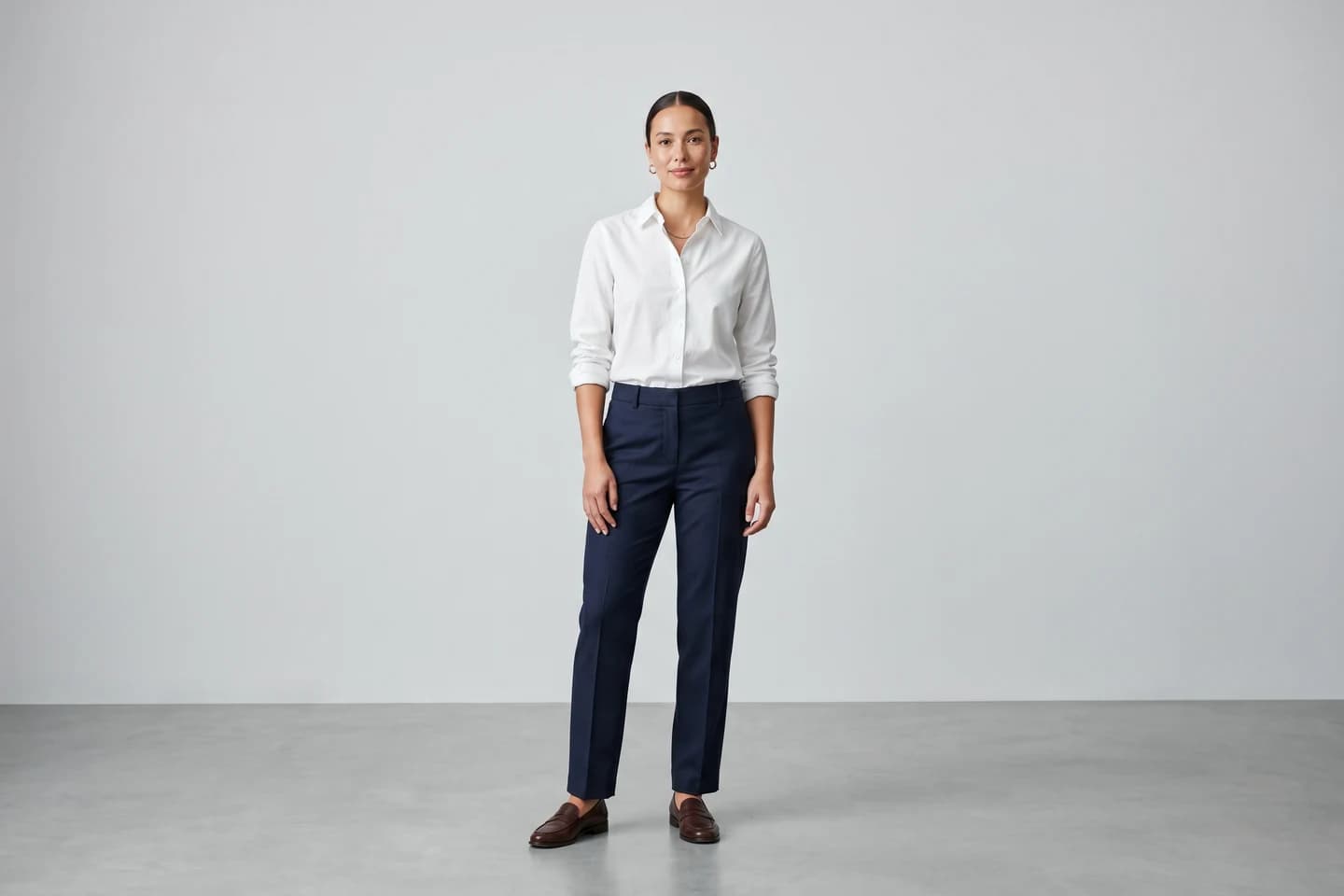
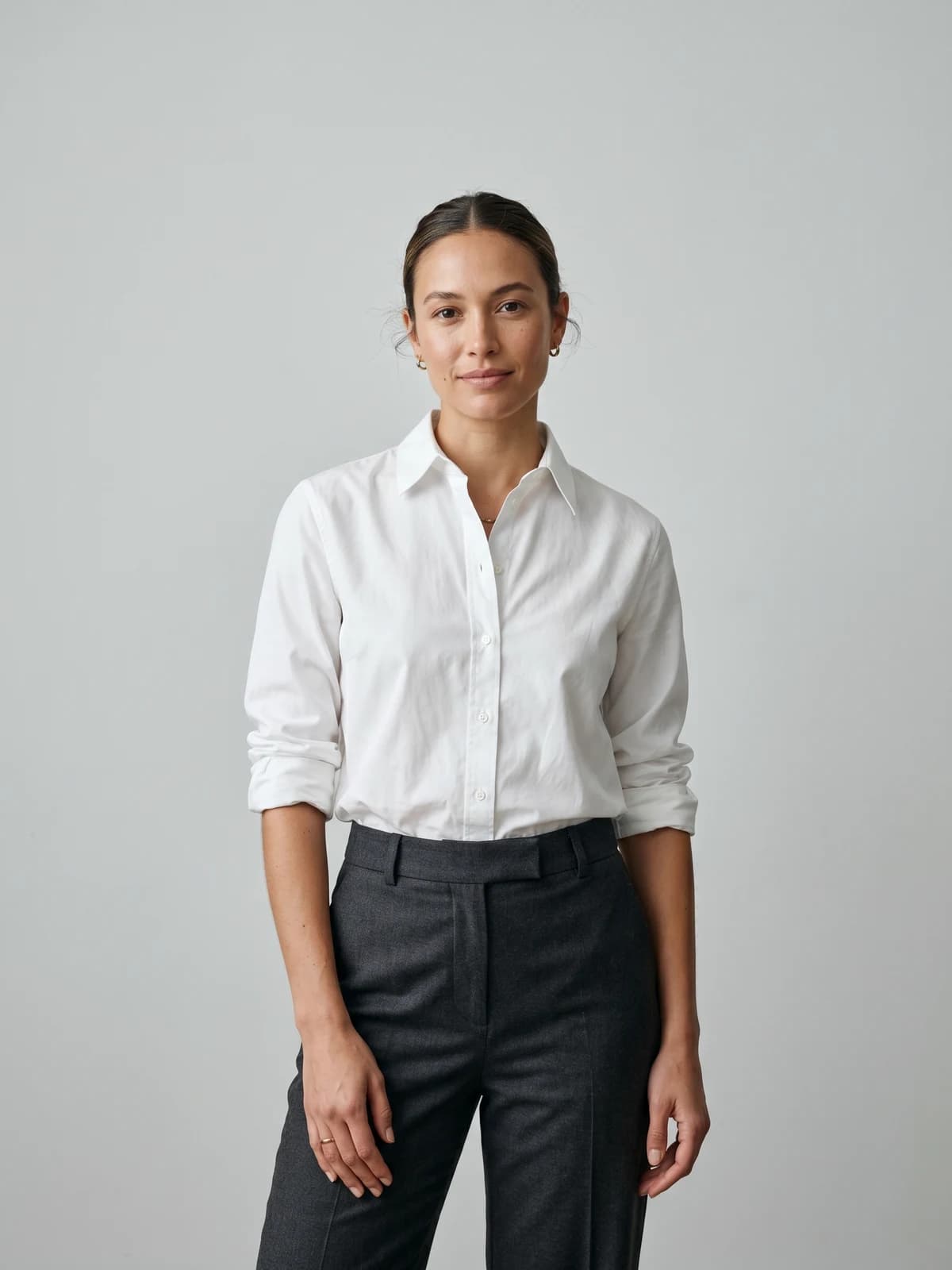
Turn flat-lays into on-model photos
Drop in a flat-lay or product shot and get professional on-model photography ready for your store.
How to choose an AI tool to recolor clothing in photos
1) One-off edit or a full colorway set?
This is the split that decides everything else. If you need to fix one image (a customer photo, a social post, a single listing), a pixel editor is the right shape: Pixelcut for speed, Fotor for color precision, Canva if the image is headed into a design anyway.
If you are building the product page for a garment sold in five colors, recoloring one photo five times gets you five versions of the same pose and angle, and shoppers notice. Generating each colorway on the same AI model gives you a matched set that looks like a planned shoot. That's WearView's lane, and it's worth the subscription when colorways are a recurring part of your catalog rather than a one-time problem.
2) Does the print need to survive?
Solid-color garments recolor well almost everywhere. Prints, logos, and embroidery are where tools separate. Pincel's Keep Outlines mode and Photoshop's hue-shift adjustments both change color without redrawing the design. Canva's Magic Edit and other regenerate-the-region tools can mangle a logo because they invent new pixels instead of shifting existing ones. Test with your busiest print before committing to a tool, not your plainest t-shirt.
3) How exact does the color have to be?
If the recolor has to hit a brand HEX value, use Fotor's HEX input or Photoshop's color controls. If "close enough" is fine, Pixelcut and Canva are quicker.
One honest caveat for sellers: an AI-recolored photo is a preview, not proof. The real sage hoodie from your supplier may not match the sage your tool invented, and that gap becomes a return. If you sell the color, photograph the real garment at least once, or work from a real photo of each variant the way WearView does.
4) Do the math on volume
For occasional edits, free tiers cover you: Pixelcut's recolor is free, Fotor and Pincel both give trial credits. At volume, compare per-image cost. Pincel's $19/month for 1,000 credits works out to a few cents per edit. Photoshop is $22.99/month with unlimited manual recolors but only 25 generative credits. WearView starts at $29/month for 50 credits, which prices per finished on-model image rather than per edit. A 40-SKU refresh with three colorways each is 120 images; run that number against each pricing page before you pick.
FAQ
What is the best AI to recolor clothing in a photo?
It depends on what the photo is for. For one-off edits, Pixelcut is the best free pick and Fotor is the best precision pick. For product pages where one garment ships in several colors, AI fashion photography platforms like WearView produce a matched on-model image per colorway instead of editing one photo repeatedly.
How do I change the color of clothes in a photo with AI?
In most tools it's three steps: upload the photo, mark the garment (by brushing it, tapping it, or describing it in text), then set the new color with a prompt or a color picker. The better tools preserve the original fabric texture and shadows so the result doesn't look painted on.
Can AI change clothing color without ruining the fabric texture?
Yes, if the tool shifts hue rather than regenerating pixels. Photoshop's Hue/Saturation route and Pincel's Keep Outlines mode both keep the weave and the shadows intact. Tools that redraw the selected region look convincing on smooth fabrics but can smear knits and prints.
Is there a free AI tool to recolor clothes?
Pixelcut's recolor tool is free with HD downloads, Fotor gives new users free credits, and Pincel starts you with 20. WearView has no free tier; it's a paid platform aimed at catalog work.
What's the difference between recoloring clothes and changing clothes with AI?
Recoloring keeps the same garment and changes only its color, which is what this guide covers. Changing clothes replaces the garment with a different one entirely, and different tools are good at that job. See our guide to the best AI tools for changing clothes in photos for that use case.
Can I use AI-recolored photos on my product listings?
Check the tool's license first: Pincel and Pixelcut's paid plans grant commercial rights, and WearView includes commercial usage rights on all plans. The bigger risk is accuracy. If the listing photo shows a color the physical product doesn't quite match, expect returns, so verify the recolor against a real sample before publishing.
Does WearView recolor clothes in an existing photo?
No. WearView generates a new on-model photo from a product photo of each actual colorway: upload the red version, get the red version on a model. That makes it the wrong tool for editing one image you already have, and the right one for producing a uniform set of colorway photos without a photoshoot.
Why do my recolored photos look flat or plastic?
Usually the tool replaced the fabric's luminance along with its hue, which erases the shadows that make cloth look real. Try a tool that shifts hue only, lower the edit strength if there's a slider, or select a tighter area so the AI has less room to repaint.
WearView Team
WearView Content & Research Team
WearView Team is a group of fashion technology specialists focused on AI fashion models, virtual try-on, and AI product photography for e-commerce brands. We publish in-depth guides, case studies, and practical insights to help fashion businesses improve conversion rates and scale faster using AI.